

Android Auto Troubleshooting Guide
Author: Toby Date Posted:21 August 2025
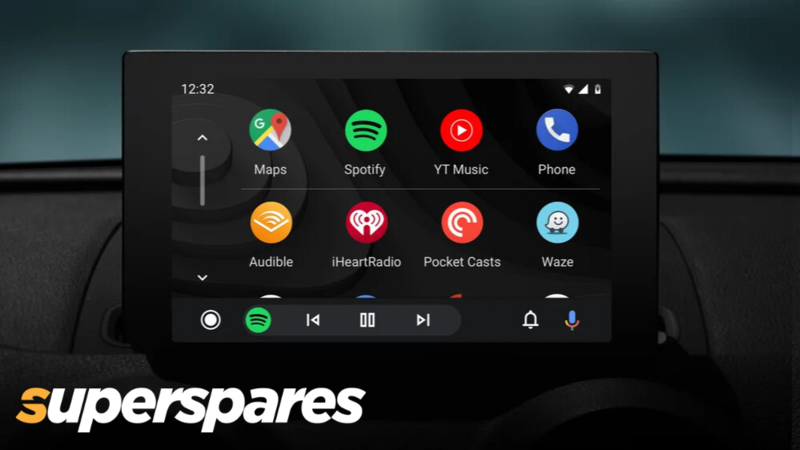

A lot of drivers use and rely on Android Auto for navigation, music, calls, and messaging on the go. This system has transformed everyone’s daily drive — but when it stops working, it’s more than just an inconvenience.
This guide focuses on the most common Android Auto problems, from connection issues to glitchy apps, and walks you through practical fixes so you can get back to driving with your favourite features at your fingertips.
ANDROID AUTO TROUBLESHOOTING
Issue |
Possible Cause |
Quick Fix |
|---|---|---|
| Android Auto Not Launching |
|
|
| USB Connection Not Working |
|
|
| App Not Showing or Glitching |
|
|
| Wireless Android Auto Issues |
|
|
| Voice Commands Not Recognised |
|
|
| New Phone Not Pairing |
|
|
| General Issues Across All Setups |
|
|
Android Auto Not Launching
If Android Auto won’t start at all, it could be due to the app not being installed or updated, your head unit not supporting Android Auto, or USB Debugging not being enabled.
Start by installing or updating the app from the Google Play Store. Confirm your head unit supports Android Auto by checking your car manual or brand websites like Pioneer, Sony, or Kenwood.
Finally, enable USB Debugging under Settings > System > Developer Options to ensure proper connectivity.
USB Connection Not Working
When Android Auto doesn’t recognise your phone over USB, the culprit is often a faulty or charging-only cable, or dirty USB ports.
Use a high-speed data cable from reliable brands like Anker or Belkin, as cheap cables can cause connection drops. Also, clean the USB port with compressed air to remove dust and debris that might block proper contact.
App Not Showing or Glitching
If an app is missing or behaving strangely, it may be hidden in your Android Auto settings or simply not compatible. Go to Android Auto > Customise Launcher to unhide apps you want to see. If an app is glitching, reinstall it from Google Play.
Keep in mind, certain apps like YouTube and Netflix won’t show up by design for safety reasons.
Wireless Android Auto Issues
Wireless connections can be affected by signal interference or power-saving features on your phone.
Disable battery optimisation for the Android Auto app, and turn off VPNs, hotspots, or data-saving settings. If you’re pairing for the first time, use a wired connection to establish the link before switching to wireless.
Voice Commands Not Recognised
If Google Assistant isn’t responding, it could be disabled, restricted by your phone’s lock screen, or struggling with microphone interference.
Enable Google Assistant as your default voice app, remove any lock screen restrictions, and consider using an external microphone if your head unit supports one.
New Phone Not Pairing
When pairing a new phone, stored profiles from older devices can cause conflicts. Delete saved vehicles from the Android Auto app, then re-pair your phone from scratch via your phone’s settings.
General Issues Across All Setups
Some issues come down to outdated firmware or the need for a simple restart. Check your head unit’s support page for the latest firmware updates and install them if available. Restart both your phone and infotainment unit, and if issues persist, reset your phone’s network settings to clear potential connection bugs.
If you’re still stuck after trying these fixes, visit the Android Auto Help Community to browse threads or post your issue for guidance from fellow users and product experts.
Keep Your Android Auto Running Smooth with Superspares
Need a better USB-C cable, a replacement mic, or thinking about upgrading your head unit for smoother Android Auto performance? Superspares has you sorted. We stock a range of Android Auto–compatible head units from trusted brands like Aerpro and Sony, along with the accessories to keep your setup running flawlessly.
As your go-to car parts store, we offer fast Australia-wide shipping, expert support, and easy online compatibility checks so you can shop with confidence.

